AEAT Renta Web Simulator: Calculate Your 2025 Taxes Without the Stress
The official tax campaign for 2025 doesn’t start until April 8th, but that doesn’t mean you have to wait in the dark. Wouldn’t you rather know now if you’ll owe money or get a refund?
Whether you’re a freelancer with foreign income, an investor receiving dividends, or just someone who wants to avoid a nasty surprise, the AEAT Renta Web Open Simulator is your secret weapon. Think of it as a “sandbox” mode for your taxes—you can play with the numbers, test different scenarios, and see your result without any legal commitment.
Here is your complete, step-by-step guide to mastering the simulator and avoiding the most common mistakes.
The “Sandbox” Mode: Why Simulate First?
The best part about the simulator? It’s risk-free. You don’t need to file anything. It’s a perfect tool to understand your financial situation before you hit the “submit” button for real.
- The Hook: You can see exactly how much Hacienda owes you (or how much you owe them) without the pressure of the official filing.
- The Assistant: While you’re on the AEAT site, don’t ignore the Asistente Virtual. It’s an AI-powered chat bubble (usually in the bottom right) that can answer specific questions in real-time, like “Can I deduct my gym membership?” or “Do I need to declare my foreign bank account?”
Phase 1: Getting Started with the Simulation
You don’t need to be a tech wizard to access this tool. In fact, you don’t even need your digital certificate or Cl@ve PIN.
- The “No-Log-In” Advantage: Go to the AEAT website and look for the Renta Web Open Simulator. You can literally just type in your name and your NIE (or DNI). That’s it. You’re in.
- Individual vs. Joint (Conyugal): If you are married, this is a crucial step. Once you enter your data, you can add your spouse’s information. The simulator will automatically calculate which option is cheaper: filing “Individual” or filing “Conjunta.” Don’t skip this—it can save you hundreds of euros.
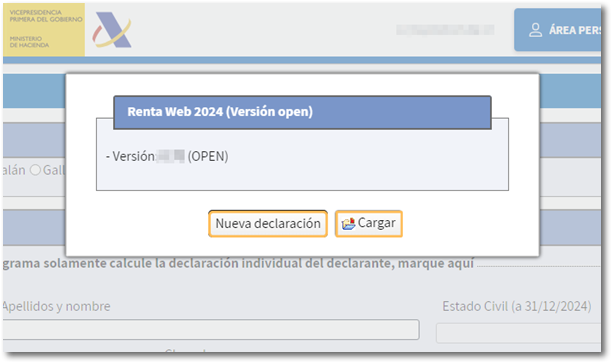
On the initial screen, you have two options:
– You can start a declaration from scratch by clicking the “New return” button.
– You can import data from a previously saved return created with the same application (a `.ses` file) using the “Load” button.
Phase 2: The Key Boxes (Where the Magic Happens)
The simulator is just a series of boxes. The trick is knowing which boxes matter most. Here is your cheat sheet for the video commentary:
| Category | Box | Why It Matters |
|---|---|---|
| Salary / Pensions | 0003 | Enter your Gross (Bruto) salary here—the total amount before taxes and deductions, not what hit your bank account. |
| Social Security | 0013 | This is a “deductible expense.” The amount you paid in Social Security lowers your overall taxable income. |
| Foreign Rent | 0102 | Essential for Expats. Even if you paid taxes on rental income in another country, you must declare the gross amount here. |
| Dividends | 0029 | Heads up: The old €1,500 exemption was removed years ago. All dividends now count towards your tax base. |
| Double Taxation | 0588 | The Hero Box. This is where you claim relief to prevent the Spanish government from taxing you on income that was already taxed in another country. |
For a deeper dive into specific deductions, check out
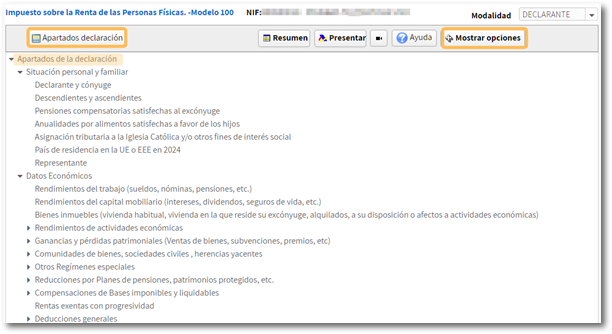
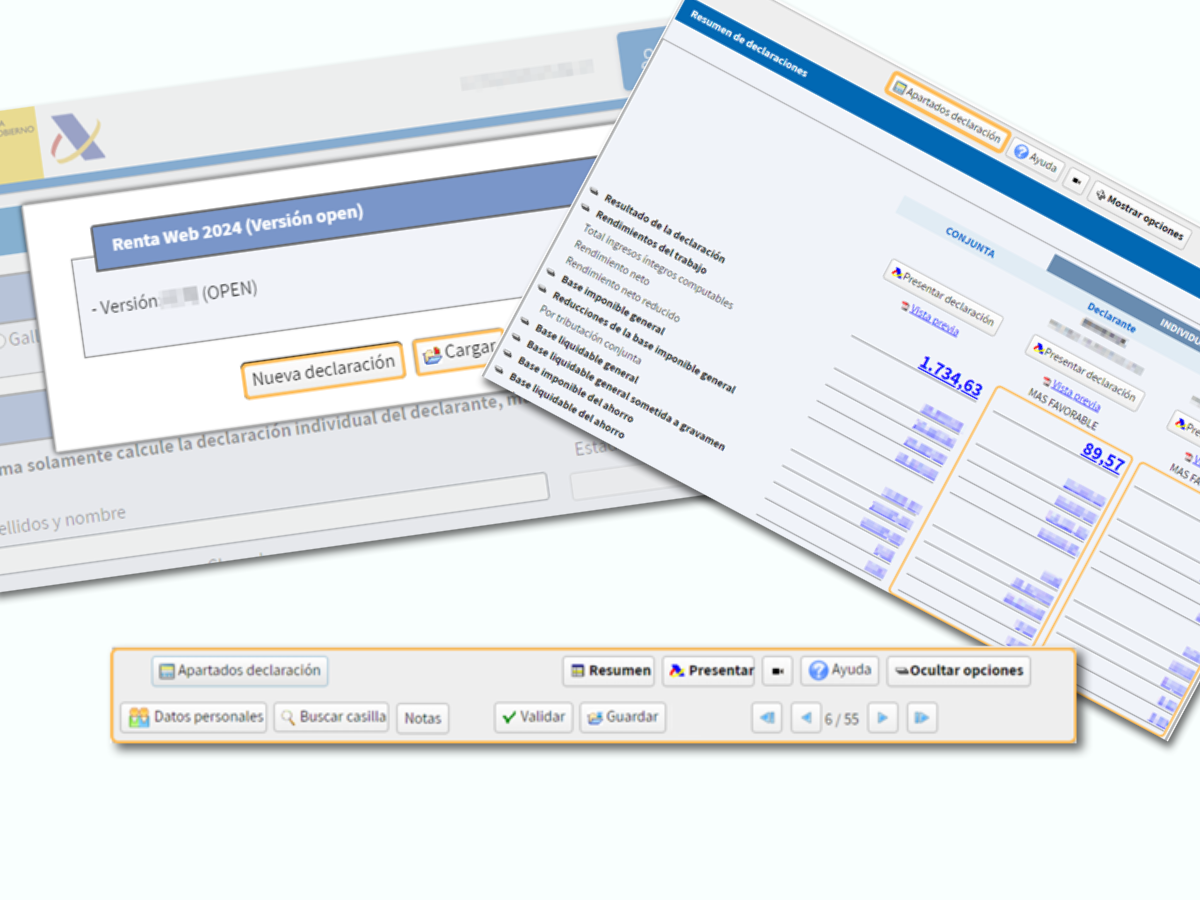
Back in the main declaration view, you will have a breakdown of links that direct you to the different sections. If you click on “Show options,” the button bar expands with more actions, including arrow commands to navigate between the pages of the declaration.
Top 5 “Simulator” Mistakes to Avoid
The simulator is smart, but it can’t read your mind. Here are the top five errors people make—and how you can fix them before they become real problems.
1. Forgetting “Cuotas Sindicales” (Union or Professional Fees)
The simulator will not automatically know if you paid union dues or fees to a professional association.
- The Fix: Manually add these amounts in Box 0019. This is a direct deduction from your taxable work income, so don’t leave money on the table.
2. Not Testing the “Joint vs. Individual” Toggle
Many couples default to filing separately simply because it feels standard.
- The Fix: Take the 30 seconds to add your spouse’s data. The simulator will generate a comparison table. If one spouse has significantly lower income, “Declaración Conjunta” (Joint Return) can often save you over €1,000.
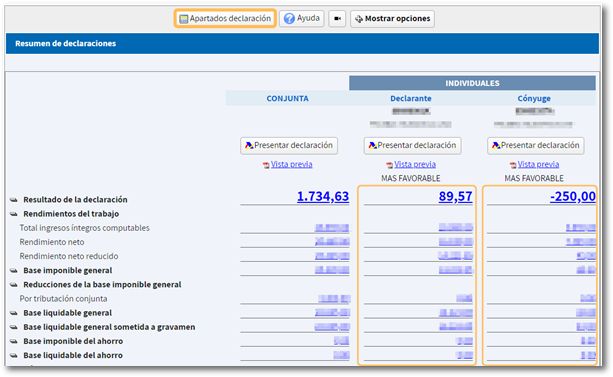
Remember that data is entered through the individual filing modes, and the joint return is automatically recalculated with the data entered in each declarant’s individual returns.
3. Missing the “Maternity” & “Large Family” Deductions
If you had a child or your family officially became a “Familia Numerosa” in 2025, the simulator doesn’t know your life events.
- The Fix: Go to Box 0611 (Maternity) and Box 0660 (Large Family). If you didn’t request the monthly €100 advance payment during the year, you can claim the full €1,200 as a lump sum here!
4. Ignoring “Foreign Income” (The Expat Trap)
Do you have a Revolut, N26, or a bank account in your home country that paid you interest? The AEAT doesn’t have that data automatically.
- The Fix: You must manually enter this interest and dividend income in the Savings Base section. Failing to do this in the real return later is the #1 reason people end up with a “Paralela” (audit).
5. Thinking the “PDF” is the Filing
You’ve entered all your data. You save the file. You breathe a sigh of relief. Stop!
- The Warning: The simulator generates a
.sesfile or a PDF. This is just a map or a draft. It is not your official tax filing. - The Hook: Don’t try to take this PDF to the bank. In our next guide, we’ll show you how to use this ‘map’ to click the real ‘Submit’ button on April 8th.
Phase 3: Understanding Your Result
Once you’ve entered all your data, the simulator will do the math. Here is how to read the result at the bottom of the screen:
- A Devolver (Negative sign –): “The minus sign is your friend!” This means the Spanish government owes you money. You’ll get a refund.
- A Ingresar (Positive sign +): You have to pay. Don’t panic. You can usually pay in two installments: 60% in June and the remaining 40% in November with zero interest.
💡 3 Technical Tips to Look Like a Pro
- The “Validar” (Check) Button: Before you assume you’re done, click the “Validar” button at the top. It will scan your entries and highlight any errors in red, showing you exactly what you missed.
- The PDF Preview: Generate the PDF “Borrador” (Draft) to see how your official filing will look. Reminder: This is just for review.
- Search by Box Number: Don’t scroll through 60 screens. Use the “Ir a página” or “Buscar casilla” feature to jump directly to the box number you need.

Renta Web and Asistente Virtual
The Renta Web Simulator is the best way to face tax season with confidence. Take an hour, grab your pay summaries and bank statements, and run the simulation today.
Here you have ready to download the guidelines provided by AEAT.
“Renta WEB Open” is a version of Renta WEB that works as a simulator.
Don’t forget to check out the Asistente Virtual on the AEAT website for quick answers while you work. Save this guide for when you start your draft, and we’ll see you in the next post where we tackle the final submission!
Disclaimer: This information is for guidance purposes. Tax laws are complex, and if you have a complicated situation, consulting with a *gestor* is always recommended.